
Keep brand names unchanged while localizing App Store screenshot text. Use Shipper Preserved Words, then review each translated layout before exporting or shipping.
Good localization keeps your message, not just your words
Your app has a story to tell. A promise, a personality, and a reason people should choose it.
When you bring that story to a new language, you want people to feel the same excitement and understand the same value, not just read a translation of your words.
That's what great App Store localization is about: making your message feel natural in every language without losing what makes your app yours.
With Shipper, you can localize editable screenshot text and App Store metadata in one workflow, while Preserved Words helps keep brand names and signature features intact.
An English headline can be short, memorable, and emotionally clear, then lose its spark when translated word for word.
Take Rover, a discovery app built around the idea that even small finds are worth remembering. One of its screenshot headlines reads: “Every find tells a story.”
That line does more than describe a feature. It gives people a reason to care: their everyday discoveries can become meaningful memories. A good French, Spanish, or Japanese version may use different words to create that same impression.
Your App Store page works as one message. Screenshots catch attention, the Subtitle communicates your value, and the Description gives people a reason to explore further. A localization that preserves literal wording but loses that promise can make the app feel less distinctive.
The words can change. The reason to care shouldn't.
Your brand identity should travel with you
Your core message needs room to adapt, but certain names should stay recognizable. Product names, branded features, and signature terms are part of what connects the experience across markets.
Imagine Rover has a feature called Trail Notes for documenting discoveries. The team wants to keep Rover and Trail Notes unchanged in French, Spanish, and Japanese, even as the rest of the product page becomes natural in each language.
Without an intentional terminology choice, the same branded feature might appear under different names in screenshot headlines, the Description, and What's New. Consistency helps people connect what they see on the App Store page with what they find inside the app.
This is a brand decision, not a requirement from Apple. App Store Connect supports localized app names. If your product uses a different official name in one market, use that name deliberately instead of preserving a single name everywhere.
Use Preserved Words in Shipper
Preserved Words lets you specify the names and expressions that should stay unchanged as you localize your App Store page.
In your Shipper project, open Translate Localization, choose the languages you want to work on, select a translation style that fits your brand, and add terms such as Rover and Trail Notes to Preserved Words.
Shipper uses these preferences when translating editable screenshot text and supported App Store metadata. You can focus on expressing the message naturally in each language without repeatedly fixing those branded terms.
Translation style helps guide the tone of the surrounding copy. Preserved Words guides the terminology. Neither replaces a final review of what your audience will actually read.
Preserved Words does not rewrite text already baked into imported app captures. If an interface capture needs another language, use a genuine capture from that localization.
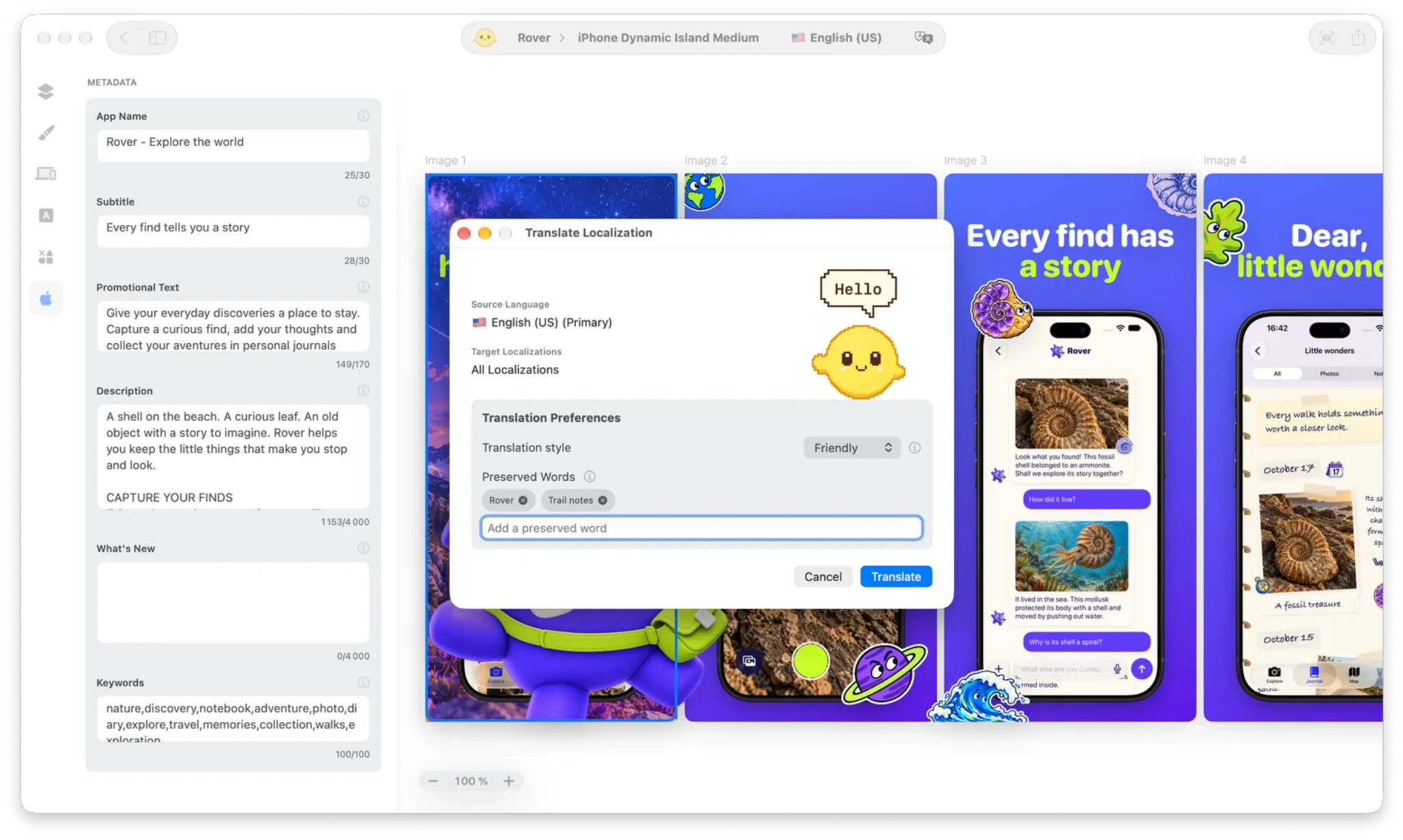
Example: one message, multiple languages
Imagine Rover uses this line to introduce its Trail Notes feature. The following examples illustrate how the sentence can change while the brand names stay recognizable.
Preserved Words: Rover; Trail Notes
English source: “Plan your next adventure with Rover and Trail Notes.”
French example: « Préparez votre prochaine aventure avec Rover et Trail Notes. »
Spanish example: « Prepara tu próxima aventura con Rover y Trail Notes. »
The phrasing speaks to each audience, while Rover and Trail Notes remain the same. The point isn't to make every translation identical. It's to make each localized page feel like the same product.
One translation workflow for your entire App Store page
Your App Store screenshots and metadata work together to tell your product's story. Shipper brings their localization into one project, so the written promise and the visual message can evolve together.
App Name: Keep the official name recognizable, or use an intentionally localized name when that's part of your brand strategy.
Subtitle: Express your main benefit in words that make sense to the local audience.
Promotional Text: Adapt your current message without losing the names of features or experiences you're highlighting.
What's New: Explain improvements clearly while preserving established feature names.
Description: Tell the same product story in the language and tone your audience understands.
Keywords: Think about how people actually search in each market instead of treating keyword localization as a word-for-word exercise.
With Preserved Words, the branded terms you choose can stay consistent across editable screenshot copy and these supported metadata fields. Your screenshots communicate the value, your metadata reinforces the positioning, and your product stays recognizable.
One project. Multiple languages. One consistent brand experience.
See how your localized App Store page comes together
A headline that fits perfectly in English might need more room in French. A translated sentence can be accurate but feel wrong next to its image. That's why localization doesn't end when the words change.
Shipper keeps screenshot compositions editable, so you can refine text and layout after translation. Use App Store Connect Preview to see the screenshots and metadata together in an App Store-style page, across the localizations you're preparing.
Ask yourself a more useful question than “Is every word translated?”: Does this version still show what makes my app worth downloading?
Check that the screenshot message agrees with the Subtitle and Description, that the branded terms remain recognizable, and that your actual app captures reflect the intended locale. Then make the adjustments your design needs.
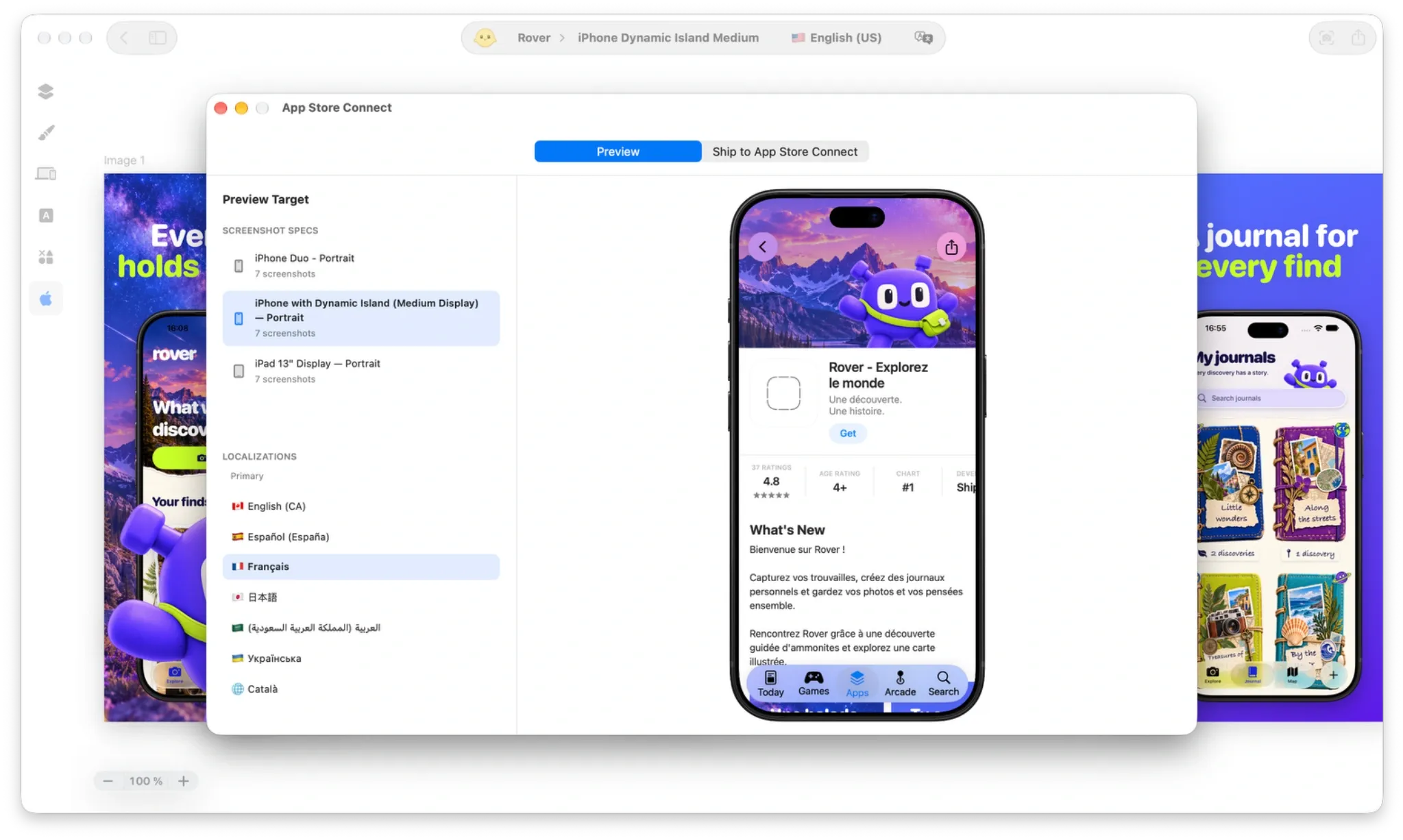
From localization to App Store Connect
Shipper Free lets you create screenshot compositions and export PNGs. Shipper PRO includes Localization and Preserved Words, plus shipping supported screenshots and metadata to App Store Connect.
Translation can use Apple Translation for supported languages or supported external AI providers with your own credentials. Codex workflows can be available through Shipper Plugin. External AI services and Codex are not included in Shipper PRO.
After reviewing your localizations, you can send the selected content to App Store Connect. Exporting a PNG, sending content to App Store Connect, passing App Review, and releasing an app publicly are different steps.
Explore Shipper Localization to bring your screenshots and metadata together.
Different languages. Same reason to love your app.
Reaching new audiences shouldn't mean starting your App Store page from scratch or losing the personality that makes your product stand out.
With Shipper, you can localize screenshots and metadata in one workflow, preserve the names that matter, and keep your message meaningful across languages.
Translate your message. Preserve your identity. Make your app feel at home everywhere.
Your questions, answered
What does Preserved Words do in Shipper?

Preserved Words keeps the brand and feature names you select unchanged while Shipper translates editable screenshot text and supported App Store metadata. You can still adapt the surrounding message for each language.
Can I translate screenshots and App Store metadata together?
Yes. Shipper's localization workflow covers editable screenshot text and supported App Store metadata, including App Name, Subtitle, Promotional Text, What's New, Description, and Keywords. Review the final wording and layouts for each locale.
Does Shipper translate text inside an imported app screenshot?
No. Text embedded in an imported screenshot is part of the image. Use a localized capture from your app when the visible interface needs to appear in another language.

 Download Shipper