
1. Verify your screenshot dimensions match current Apple requirements
Apple updates its required screenshot sizes when new devices launch. The required sizes for iPhone as of 2025 are 6.9-inch (iPhone 16 Pro Max) and 5.5-inch (iPhone 8 Plus). For iPad, 13-inch and 12.9-inch third-generation are required. Submitting outdated dimensions does not always trigger an immediate rejection, but missing a required size will block your submission entirely. Check the current specs directly in App Store Connect screenshot specifications before you export anything. Do not rely on memory or old templates.
Tip: Export at the correct pixel dimensions and verify the file size is under 500MB per screenshot. A mismatch in aspect ratio is one of the most common silent errors.
2. Make sure your screenshots do not show any device frames Apple does not allow
Apple does not prohibit device frames in screenshots, but they do reject images that show inaccurate or misleading hardware representations. If you use a device mockup, the frame must match a real Apple device and must not suggest features the device does not have. More commonly, screenshots get flagged for showing a status bar with a non-standard time, full battery, or placeholder network indicators that look like part of the actual UI. These details read as minor but reviewers do flag them.
3. Review your metadata before it goes up alongside your screenshots
Screenshots and metadata are reviewed together. A rejection on your privacy policy link, your subscription description, or your EULA will pull the entire submission, including screenshots that were perfectly compliant. I went through this with Sunna Planner early on: the screenshots were fine, but missing subscription terms triggered a rejection that delayed the launch by several days. The fix was simple once I knew what was missing, but the delay was real.
4. Check that your screenshot copy does not make claims you cannot support
App review guidelines are explicit about misleading content. If your screenshot says something like the number one productivity app or best-in-class performance, you need evidence that supports that claim. Unverifiable superlatives are a rejection risk. Beyond guidelines, this is also an ASO problem: vague claims do not convert. Screenshot copy that explains what your app actually does, with specificity, performs better than generic marketing language in conversion tests.
Tip: Replace superlative claims with concrete feature descriptions.
5. Preview your App Store page before you submit
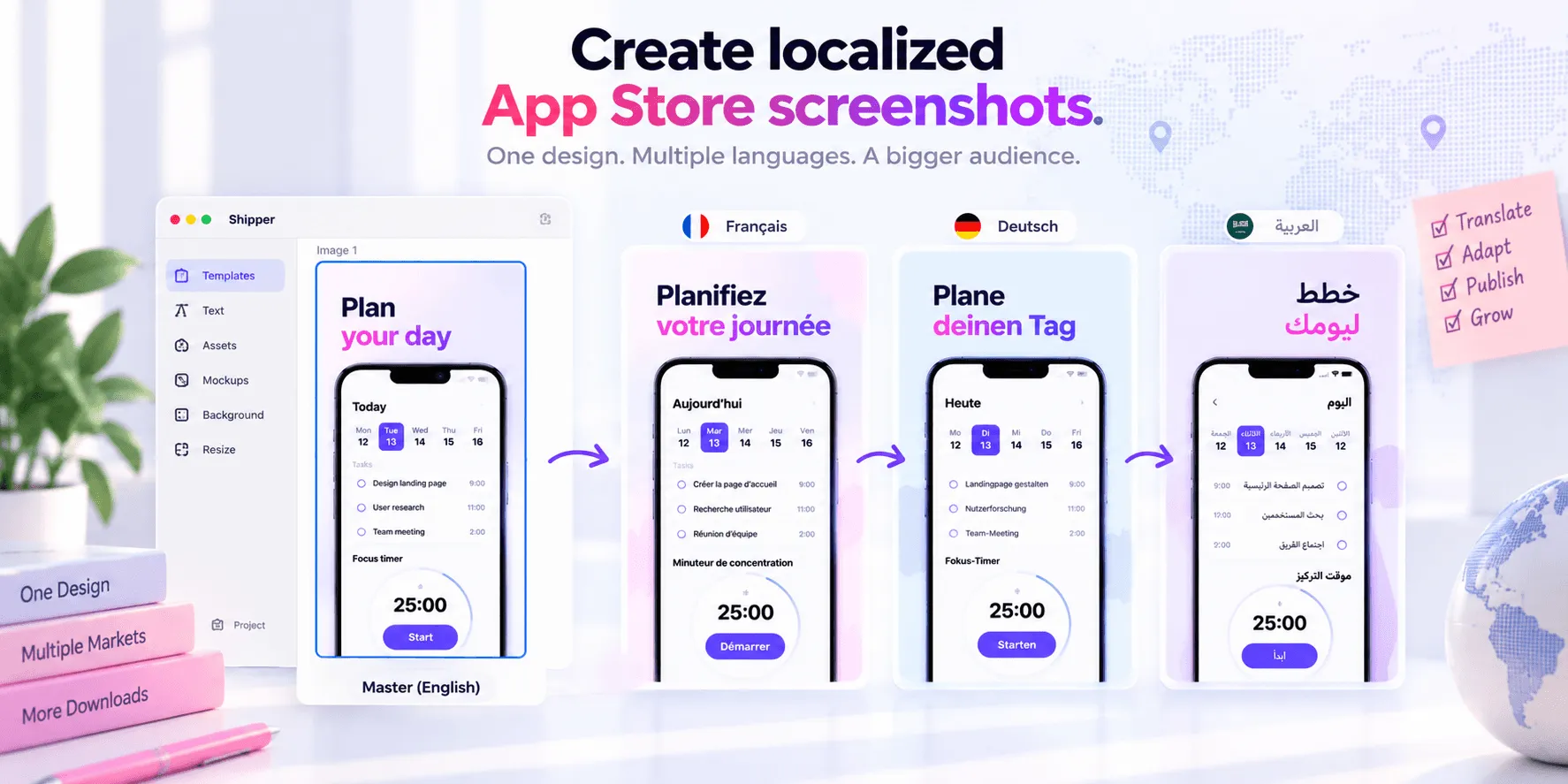
Some tools like Shipper lets you preview how your product page will look before it goes live. Use it. What looks correct in your design tool often looks different in the actual App Store context, especially on smaller screen sizes or in dark mode. Check that text is legible, that the first screenshot communicates your core value immediately, and that the sequence tells a coherent story. The first three screenshots are the ones most users see before deciding to tap or scroll away.
Tip: Check the app launch screenshot checklist for a structured review of what your page needs to communicate before it goes live. A five-minute preview pass has caught real problems before submission more than once.
Conclusion
Most submission delays are preventable. Dimensions, metadata, copy claims, and a final preview check take less than an hour combined. Do them before you submit, not after a rejection forces you to. One clean submission is always faster than two.
Resources to know: App Review Guidelines