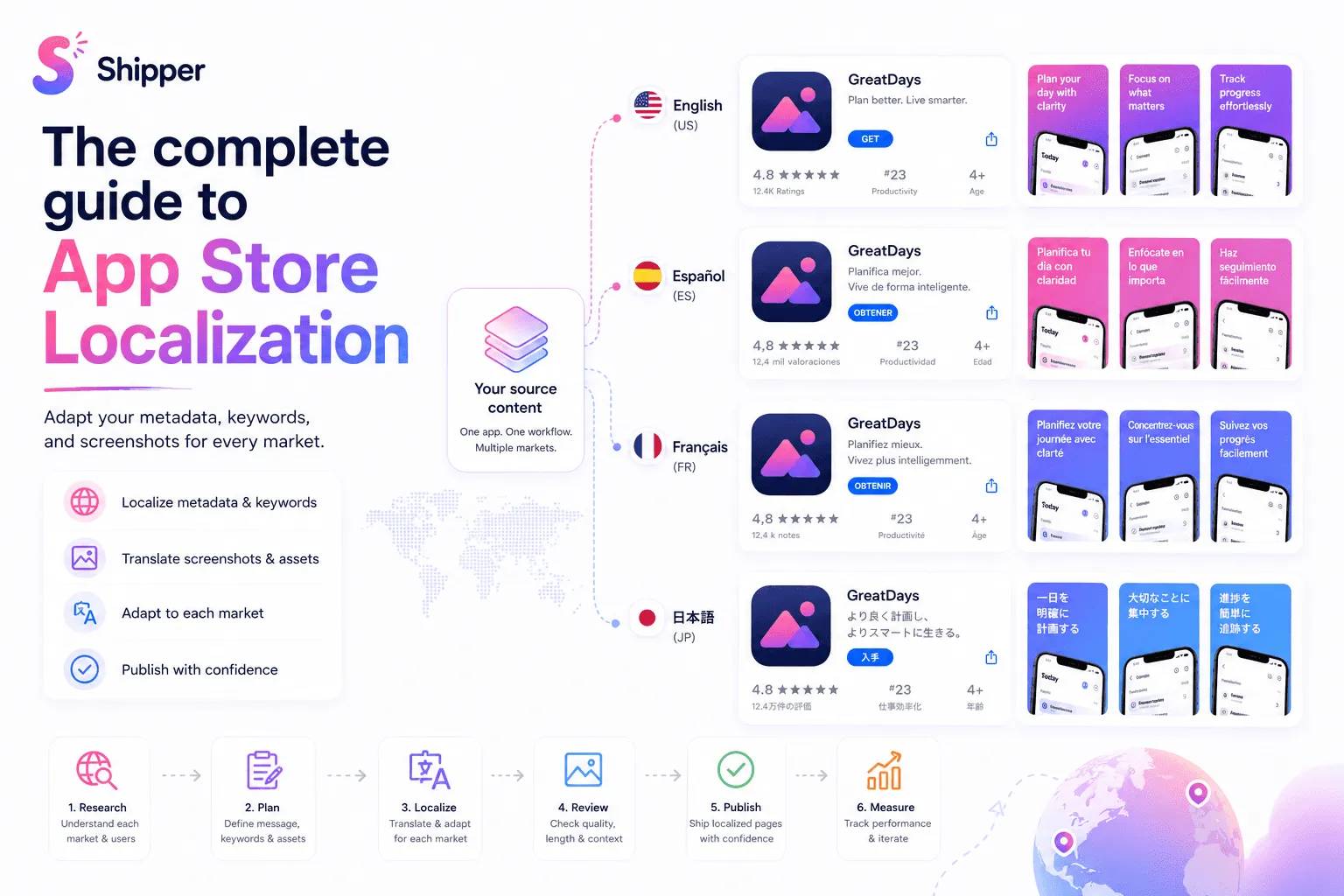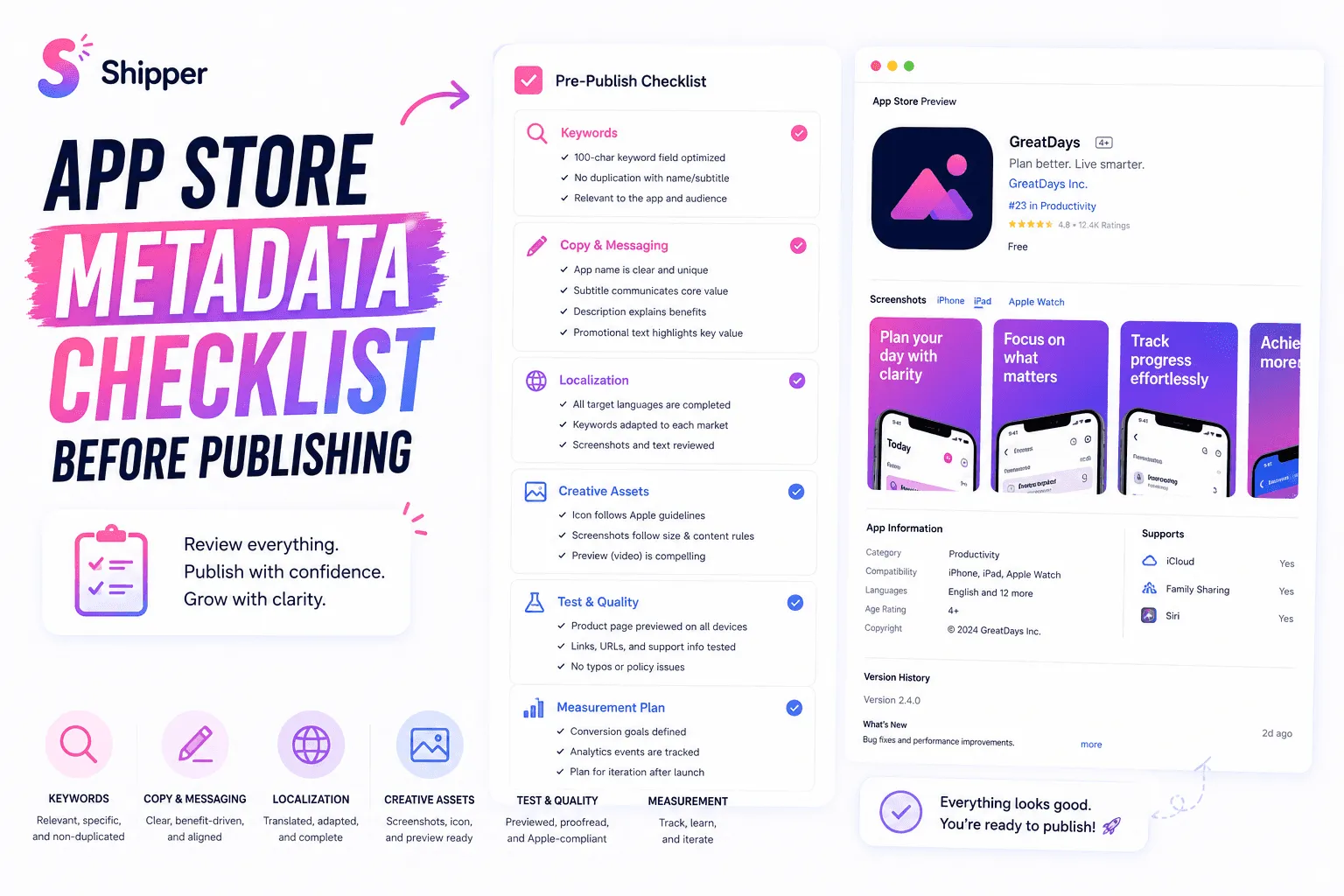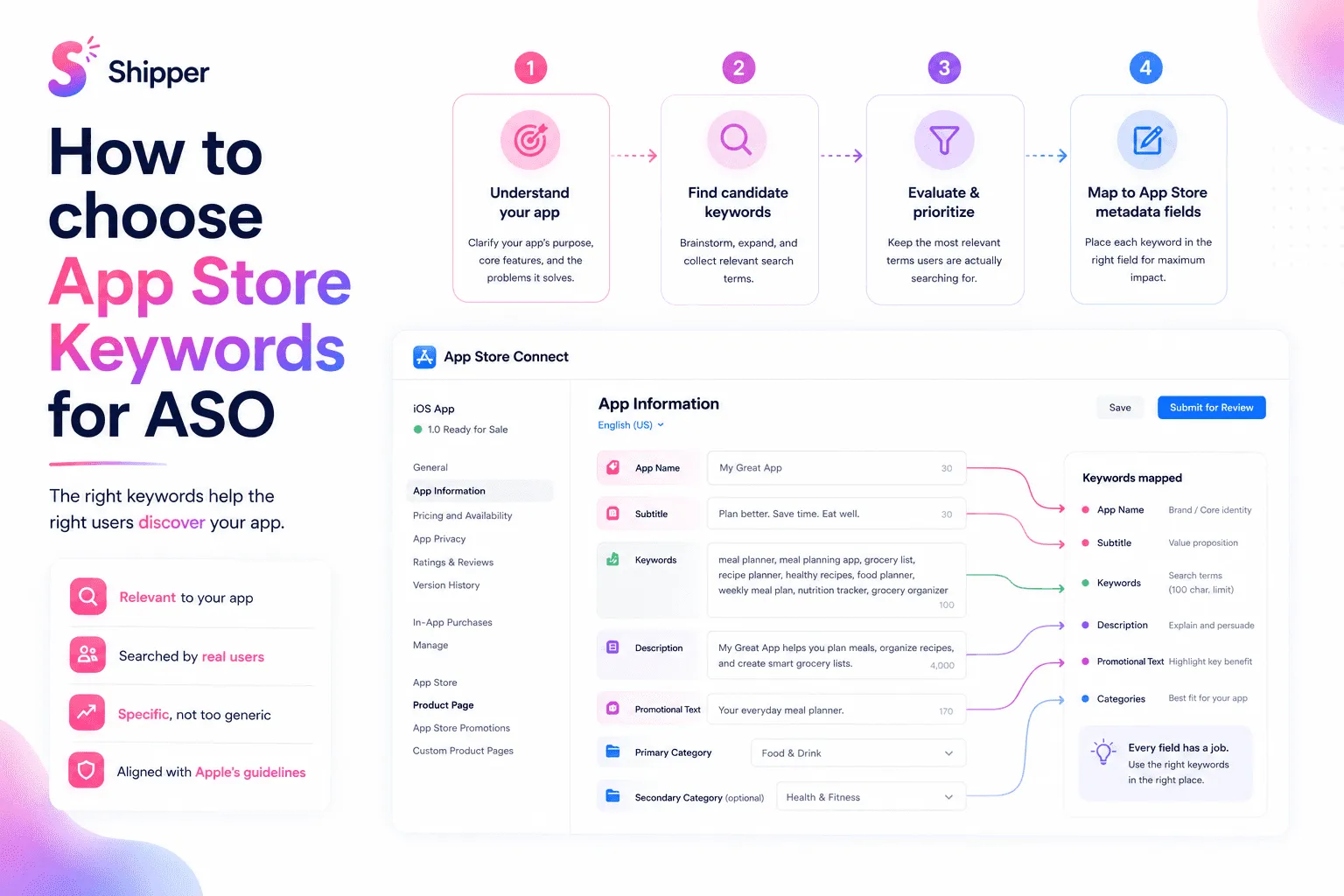

App Store screenshot guidelines cover more than image dimensions. Your files must pass App Store Connect’s technical validation, while their content must also satisfy App Review.
A screenshot can upload successfully and still cause a rejection if it misrepresents the product, shows the wrong device, exposes personal data, or promotes functionality that the submitted app does not provide.
Here is what Apple currently requires and what you should check before submitting.
Apple’s technical screenshot requirements
Apple accepts between one and ten screenshots for each supported platform and localization. Files must use JPEG, JPG, or PNG format. They cannot contain alpha channels or transparency.
Every image must match one of Apple’s accepted pixel dimensions. Portrait and landscape assets use reversed width and height, so rotating an incorrectly sized export will not make it valid.
Screenshots are required. App preview videos are optional and follow separate specifications. If you add an app preview, it appears before screenshots on supported platforms, regardless of the order shown while editing the app record.
Always check Apple’s live specification page before exporting. Device groups change as Apple introduces new hardware, so an old template or checklist can become inaccurate.
Which device sizes you need
For iPhone, Apple currently accepts the 6.9-inch display group as the primary high-resolution group. The 6.5-inch group is required when you do not provide accepted 6.9-inch screenshots. Apple can scale the high-resolution assets for smaller iPhone displays.
If your app runs on iPad, the 13-inch group is required. Apple can derive several smaller iPad sizes from the main assets, but you can provide custom screenshots through Media Manager when the layout or readability differs.
Mac screenshots must use one of Apple’s accepted 16:10 dimensions. Apple TV, Apple Vision Pro, and Apple Watch each have their own required formats. Apple Watch also requires you to use the same screenshot size consistently across all localizations.
Scaling saves production time, but inspect the generated results. Text that works on a large screenshot may become too small on another display.
What App Review checks inside the image
Apple requires screenshots to reflect the app’s real core experience. They should show the app in use, not only title artwork, a splash screen, or a login page.
Text, backgrounds, device frames, and other overlays are allowed when they clarify the experience. They must not hide the product or create a feature that does not exist.
Your screenshots should also:
Match the device type selected in App Store Connect
Use fictional account information instead of real personal data
Include only material you own or have permission to use
Avoid unrelated names or imagery from other mobile platforms
Make it clear when promoted content or features require an additional purchase
Remain appropriate for a broad App Store audience
Stay consistent with the version submitted for review
Avoid unverifiable claims such as “number one” or “the best” unless you can substantiate them. Specific product benefits are clearer and safer.
A compliant screenshot example
Imagine a budgeting app with the headline “Understand every expense.”
A compliant screenshot shows the real spending dashboard with realistic fictional transactions. The device frame matches the selected iPhone group, and the overlay leaves the interface visible.
A risky version uses a fabricated dashboard, displays a real customer’s name, promises automatic tax filing that the app does not offer, or places an Android interface inside an iPhone frame. The image may have valid dimensions, but its content can still fail review.
Checklist before uploading
Export between one and ten screenshots
Use JPEG, JPG, or PNG without transparency
Match an accepted device dimension
Confirm portrait or landscape orientation
Show the real app in use
Verify every marketing claim
Replace personal information with fictional data
Disclose features that require an additional purchase
Review every localization and scaled device variant
Confirm the final order in App Store Connect
Once a version has been approved, Apple requires a new app version to update its standard screenshots. Keep editable source files so future updates do not require rebuilding the complete set.
FAQ
How many App Store screenshots can I upload?
Apple allows between one and ten screenshots for each supported platform and localization. You do not need to use all ten if a shorter set explains the app clearly.
Do I need screenshots for every device size?
No. Apple can scale accepted high-resolution screenshots for several smaller displays. You still need to provide the required primary group for every platform your app supports.
Can I add text and device frames to screenshots?
Yes. Apple allows text and image overlays, including device frames, when they support an accurate representation of the app and do not obscure the real experience.
Why can technically valid screenshots still be rejected?
App Store Connect validates the files, while App Review evaluates their content. Screenshots can be rejected for misleading claims, incorrect device imagery, exposed personal data, missing purchase disclosures, or an inaccurate representation of the app.
Conclusion
Following App Store screenshot guidelines means validating both the file and its message. Use accepted dimensions, show the real product, protect personal data, and keep every claim consistent with the submitted version.
Shipper can simplify this workflow by helping you design, localize, validate, and publish screenshot sets for App Store Connect.