
1. Verify your screenshot dimensions against the current Apple requirements
Apple's required screenshot sizes change more often than most developers expect. The 6.9-inch display became required for new submissions. If you only have 6.5-inch assets, App Store Connect may block the submission or fall back silently to a lower-quality display. Check the exact pixel dimensions in Apple's official screenshot specifications before every major release, not just your first one.
Concrete tip: Keep a small reference note in your project folder with the current required sizes per device. When Apple updates the spec, you update the note. It takes two minutes and saves a rejected submission.
2. Check that every localized market has screenshots
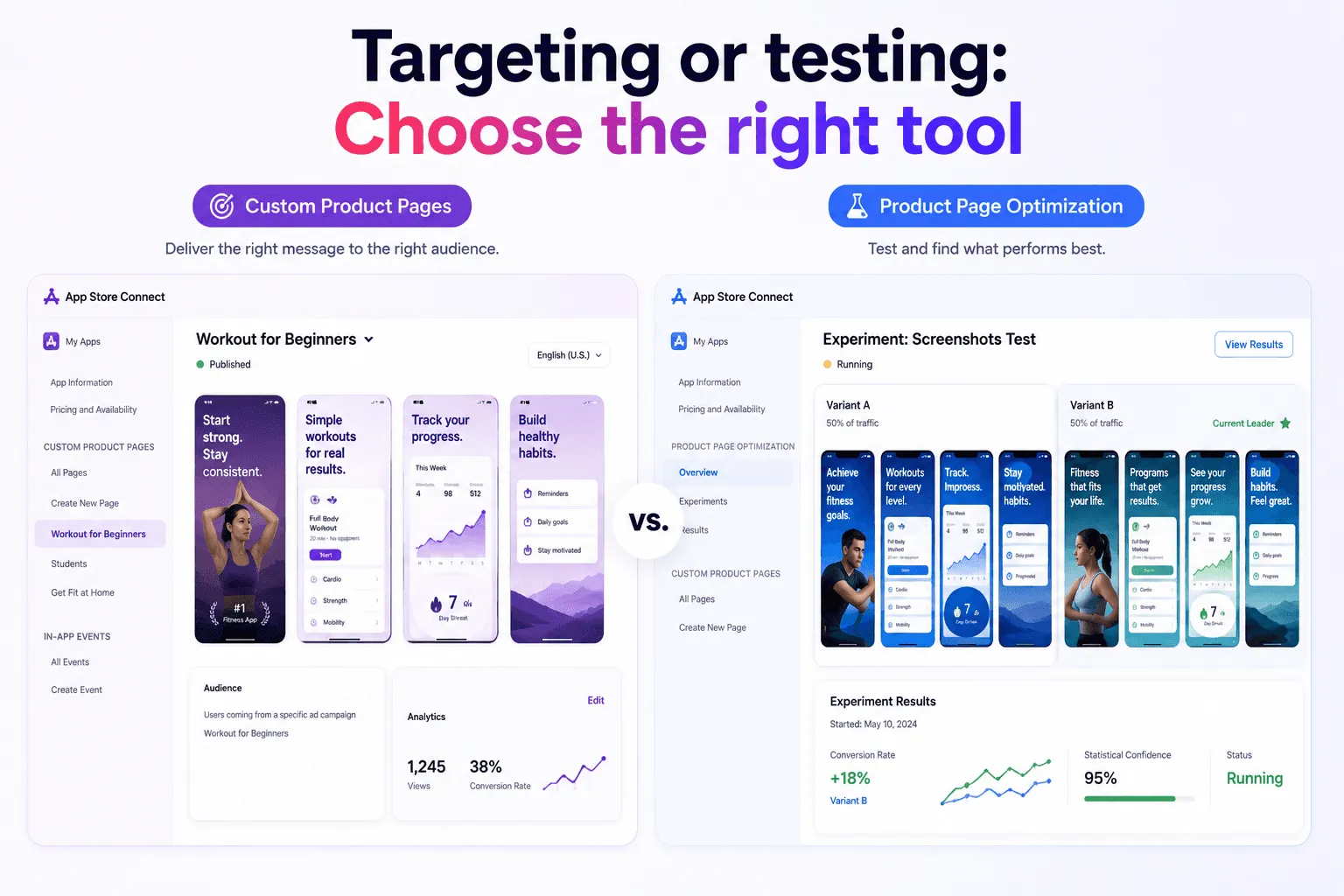
If you ship in French and English, both locales need screenshots. If one locale is missing assets, App Store Connect uses your default language screenshots as a fallback. That is fine for some markets, but if your French screenshots have French copy and your English locale falls back to them, the experience breaks. Localization gaps also hurt ASO in non-default markets because you cannot run Custom Product Pages or product page optimization without complete base assets.
Concrete tip: Before submitting, open App Store Connect and click through each active locale. Do not assume the fallback is working the way you think it is.
3. Make sure your first screenshot carries the actual value proposition
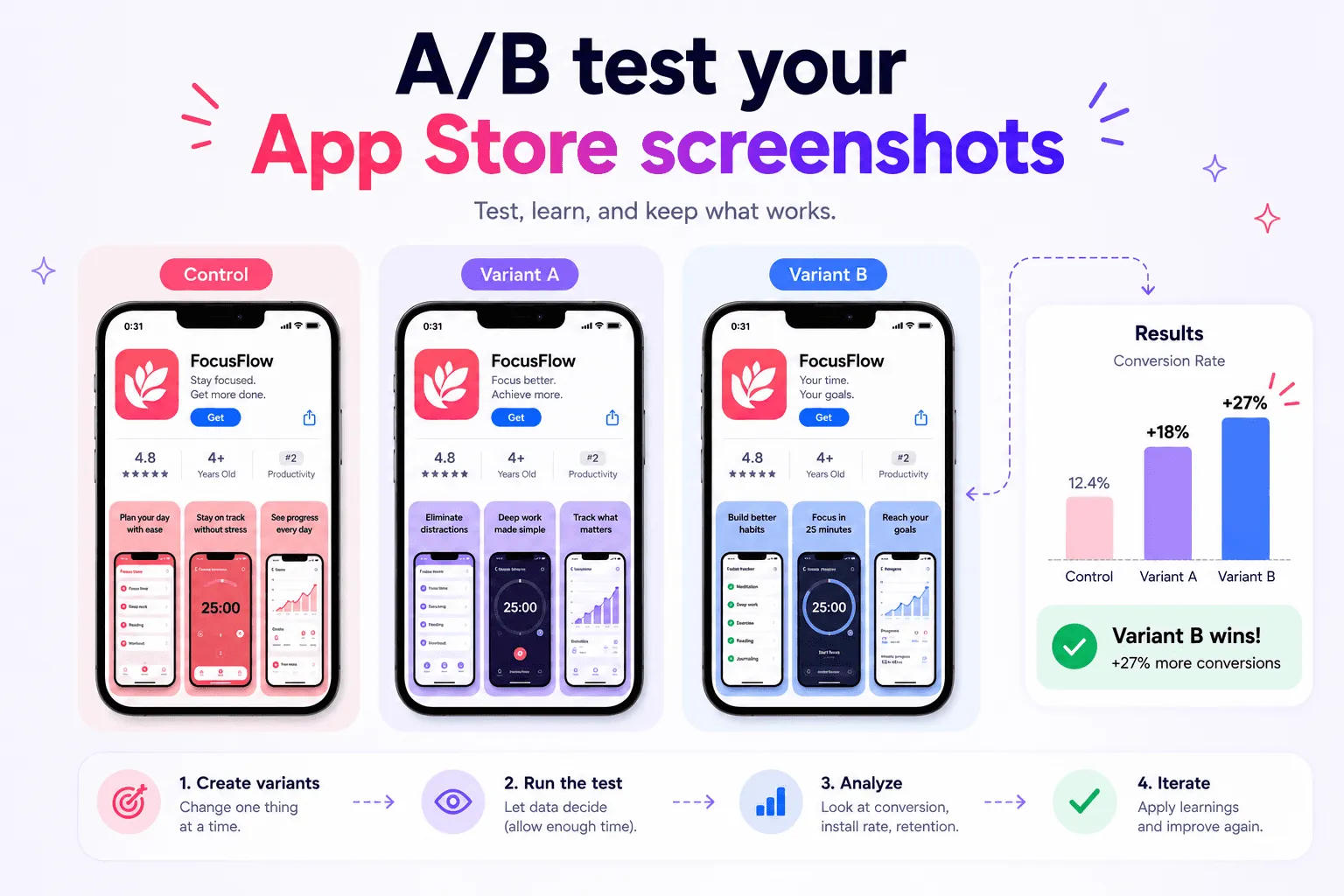
Most users never scroll past the first screenshot in search results. The first frame is what they see in the search listing, in the Today tab, and in any featuring. If frame one shows a loading screen, a generic device mockup, or a feature that is not the reason someone would download your app, you are wasting the most valuable real estate on the App Store. I rebuilt the Sunna Planner screenshots completely after noticing the original first frame was not communicating the core benefit fast enough. Conversion improved after the change.
Concrete tip: Write the headline copy for frame one before you design anything. If you cannot write it in under seven words, the value proposition is not clear enough yet.
4. Review your metadata for consistency with what the screenshots show
App Store review checks for consistency between your app description, screenshots, and the actual app behavior. If your screenshots show a feature that is locked behind a paywall but your metadata does not mention it, that is a rejection risk. If your description mentions a feature that does not appear in the app at all, that is also a problem. Metadata rejections are not always about screenshots directly, but inconsistency between what is shown and what is described is one of the most common causes of review delays.
Concrete tip: Read your short description and your first two screenshots side by side. They should tell the same story. If they do not, fix one of them before submitting.
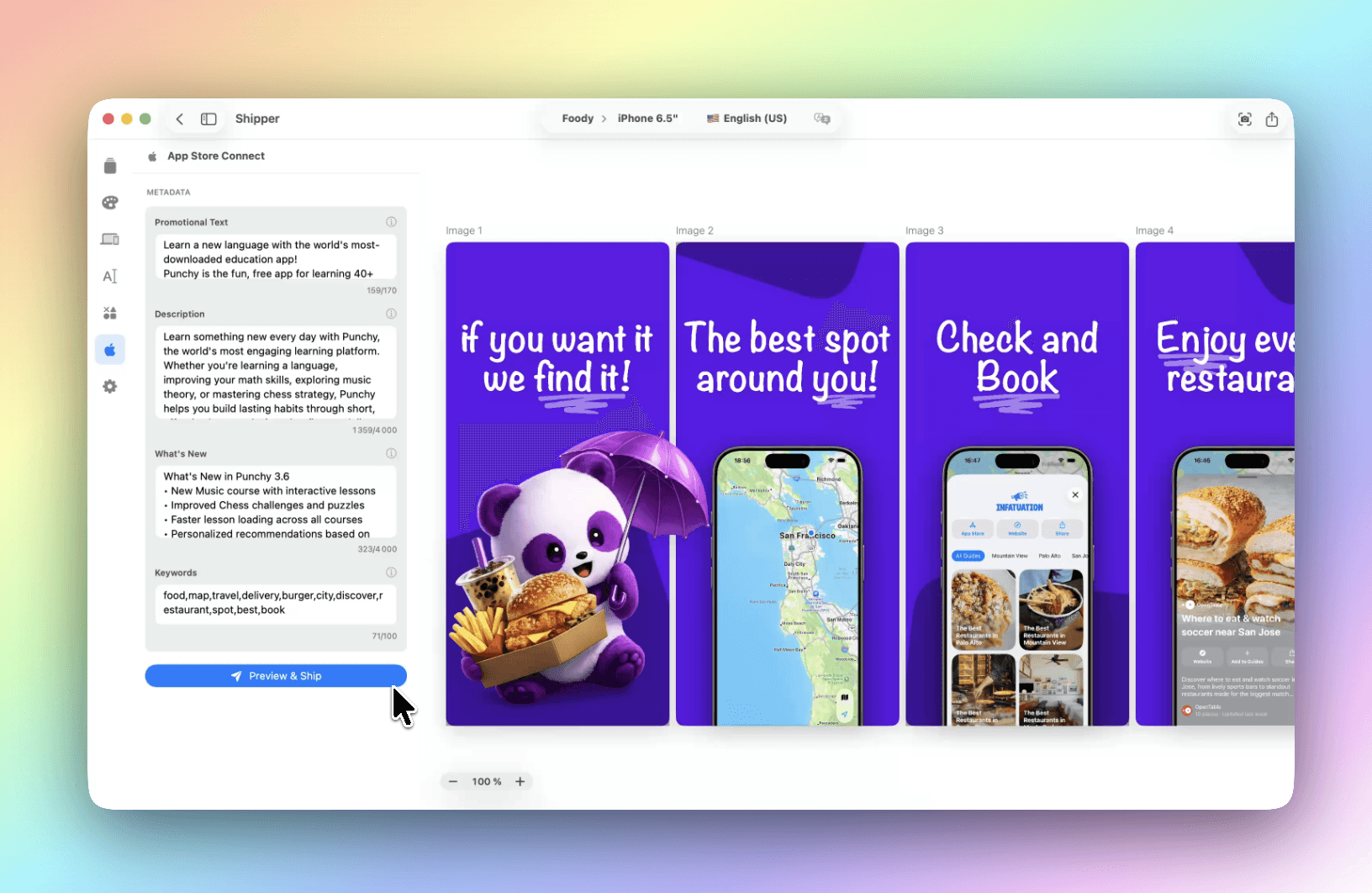
5. Preview your screenshots and meta data
A gradient that looks clean in Figma can appear banded on an OLED display. Text that is readable at 1x can become illegible at the actual App Store thumbnail size.
Concrete tip: Also check the thumbnail size specifically. In search results, your screenshot is displayed at roughly 120 to 140 points wide. If the text is not readable at that size, it needs to be larger or removed.
The short version
Most screenshot problems are preventable with a five-minute check before every submission. Dimensions, locale coverage, first-frame clarity, metadata consistency, and real-device review. Fix these before you submit and you eliminate the most common reasons a screenshot workflow fails at the finish line.
Shipper as your assistant
All of these checks are simple on paper, but they quickly become time-consuming when you're managing multiple devices, localizations, screenshots, and metadata updates.
That's exactly why I built Shipper.
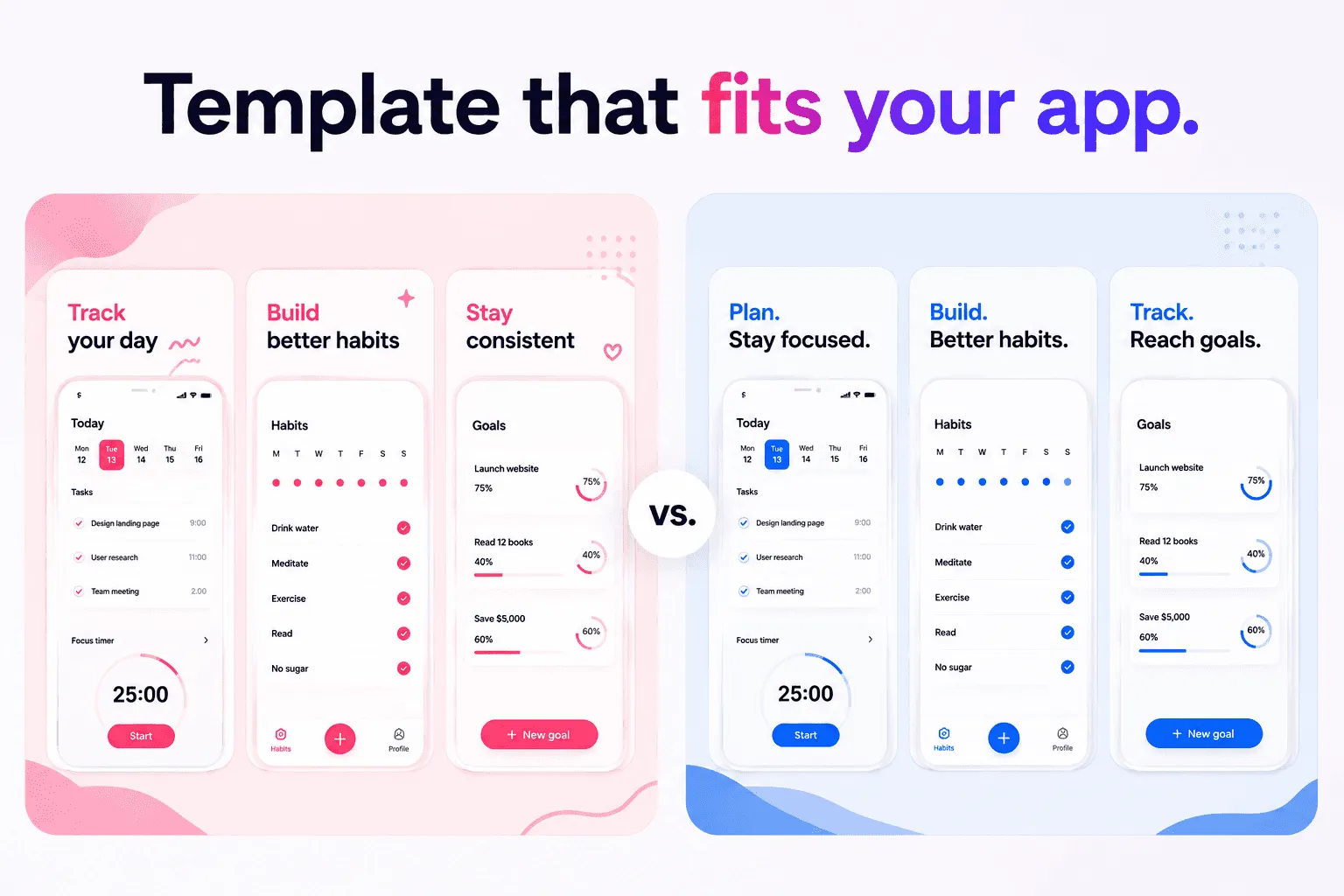
Shipper helps you create App Store screenshots faster and with fewer mistakes by bringing the entire workflow into one place. Capture screenshots directly from the iOS Simulator, design your visuals using ready-to-use templates or start from scratch, manage localizations, organize your metadata, preview your App Store assets, and upload everything to App Store Connect from a single workspace.
Instead of juggling design tools, folders full of exported images, spreadsheets for translations, and App Store Connect tabs, you can manage your entire App Store presentation in one project.
The goal isn't just to save time. It's to help you ship better screenshots, maintain consistency across every market, and reduce the friction between finishing your app and publishing it.
Because once your app is ready, the last thing you want is for screenshots and metadata to become the bottleneck.