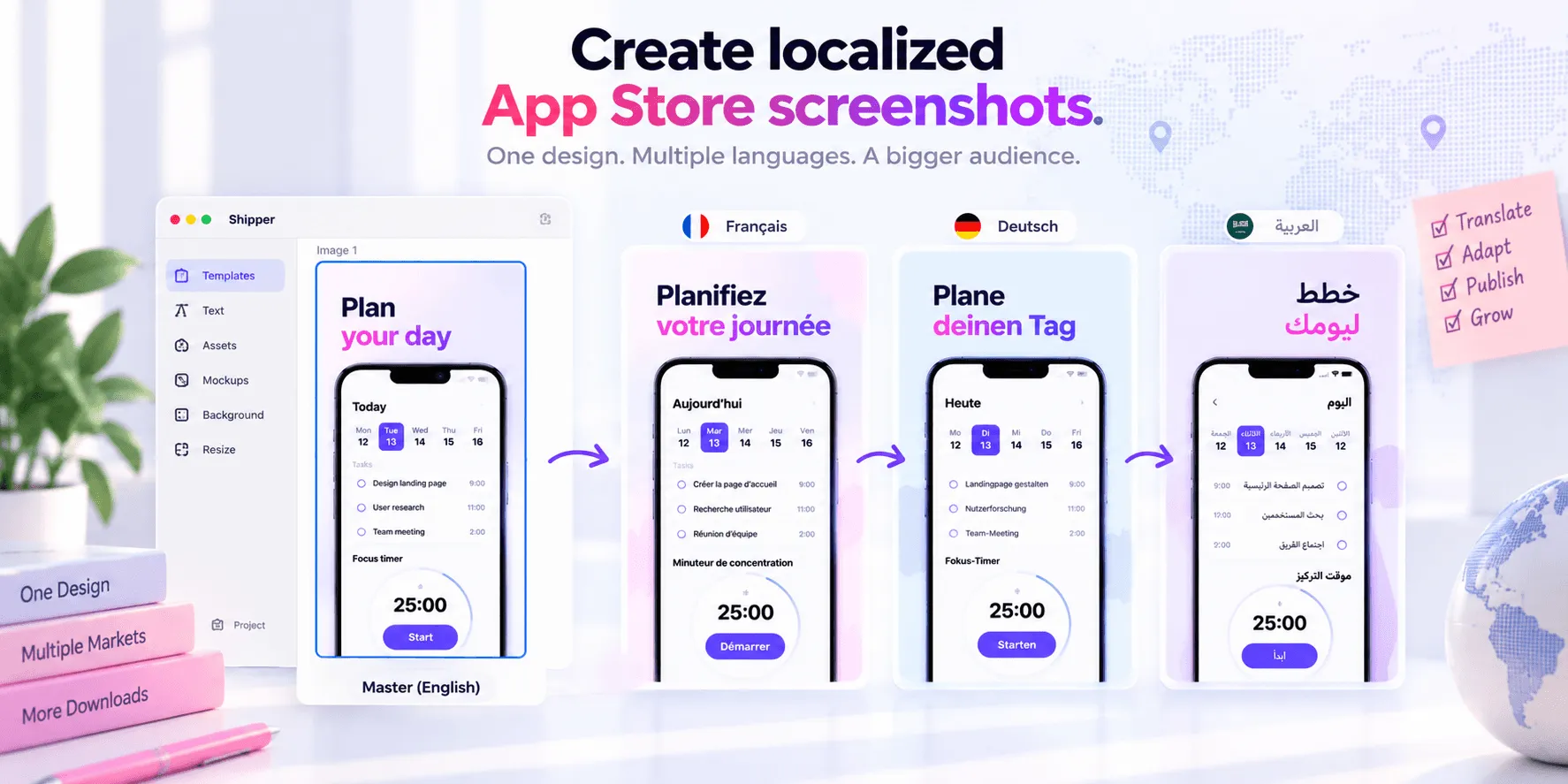

1. Using the same screenshots for every locale
If your app supports multiple languages, submitting identical screenshots for every locale is a missed opportunity at best and a credibility problem at worst. A French user landing on an App Store page with English-only screenshots reads one thing clearly: this app was not made for me. Localized screenshots consistently outperform generic ones in conversion, especially in non-English markets. This is not theory. When I managed the FR and EN locales for my apps in Canva, maintaining two separate files per spec was painful enough that I would sometimes skip the update. That friction has a real cost.
Concrete tip: At minimum, localize the text overlays on your screenshots for your top two or three markets. You do not need to redesign everything, just translate the copy that appears on screen.
🏖️ With Shipper, you can manage all your screenshots by locale and screenshot spec in one project!
2. Designing screenshots that describe features instead of communicating value
The most common screenshot mistake is listing what the app does instead of showing why it matters. Screenshots are not a feature tour. They are your first impression on a user who will spend about three seconds deciding whether to scroll or leave. A screenshot that says Kanban board tells a developer nothing useful. A screenshot that says See every task, every project, at a glance connects to a problem the user actually has. The frame is the same. The outcome is completely different.
Concrete tip: For each screenshot, ask: what does this solve for the user? Write the headline from that answer, not from the feature name.
3. Submitting without running any kind of conversion test
Apple gives every developer access to product page optimization, a native A/B testing tool built directly into App Store Connect. Most indie developers never use it. With my app Sunna Planner, I used it to test a full visual overhaul against the original screenshots before committing to the change. The new version converted better, and I had actual data to confirm it. Shipping new screenshots without testing is leaving insight on the table when the tool to collect that insight is free and already available to you.
Concrete tip: Before rolling out a full screenshot refresh, set up a product page optimization test in App Store Connect with at least 50 percent of traffic on the new version. Let it run for two to three weeks before drawing conclusions.
4. Treating all users as the same audience
If your app has more than one type of user, one set of screenshots will never fully convert all of them. Custom Product Pages in App Store Connect let you create alternate versions of your store listing, each targeting a different audience or acquisition channel. With Sunna Planner, I discovered that users came for two distinct reasons: planning and productivity features, or spiritual tools like dhikr and Quran verse of the day. A custom page focused entirely on dhikr outperformed the default page that tried to show everything at once. Segmentation is not just for ads. It applies directly to your App Store presence.
Concrete tip: If you run paid acquisition across different audiences or keywords, create a dedicated Custom Product Page for each campaign instead of sending everyone to the same default listing. You will see the difference in conversion immediately.
Before you go
Screenshots are not decoration. They are the first sales surface your app has. Getting them right before submission means fewer rejections, better conversion, and more installs from the same traffic. If you want a structured checklist to work through before your next submission, this App Store screenshot checklist covers the full pre-launch flow.