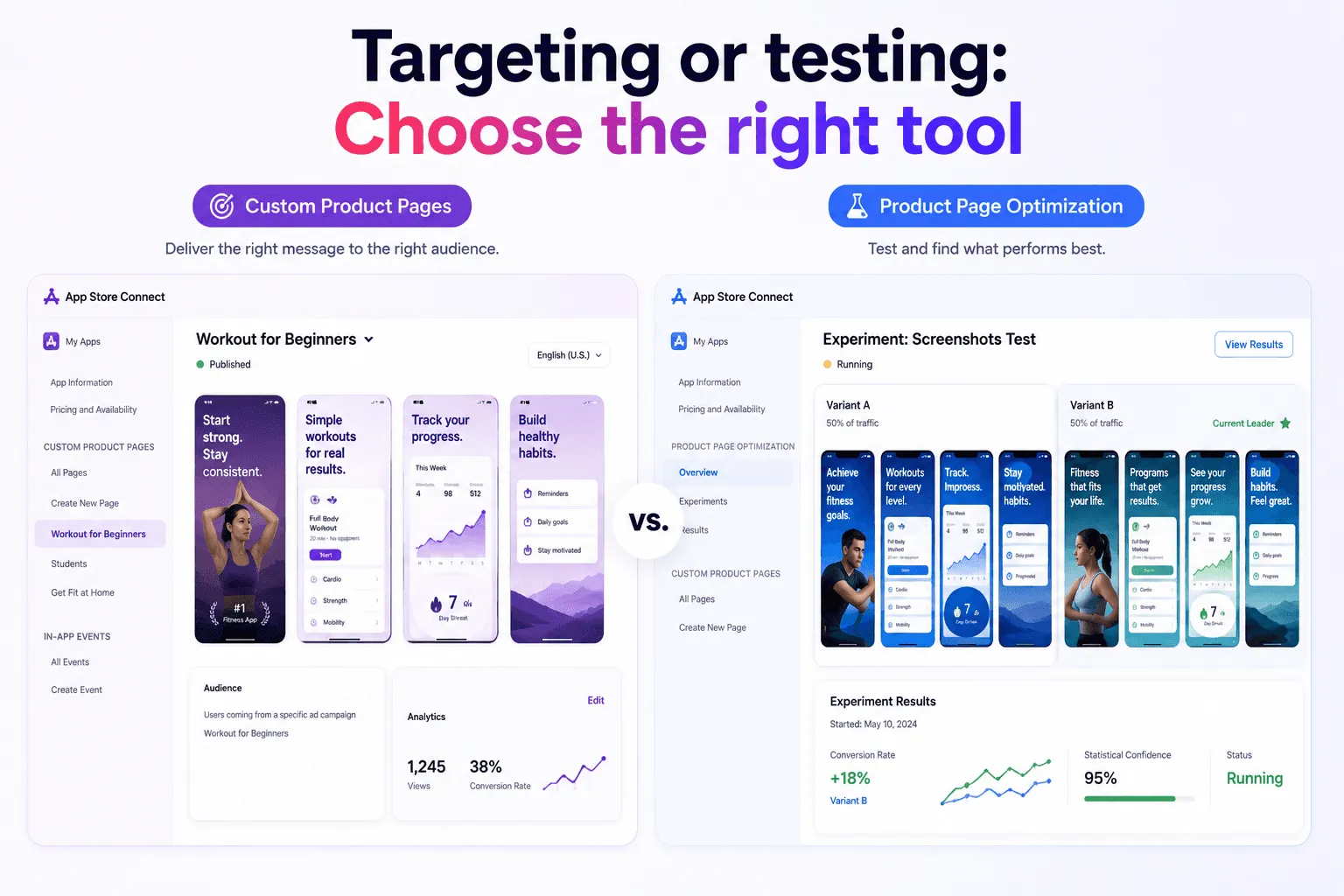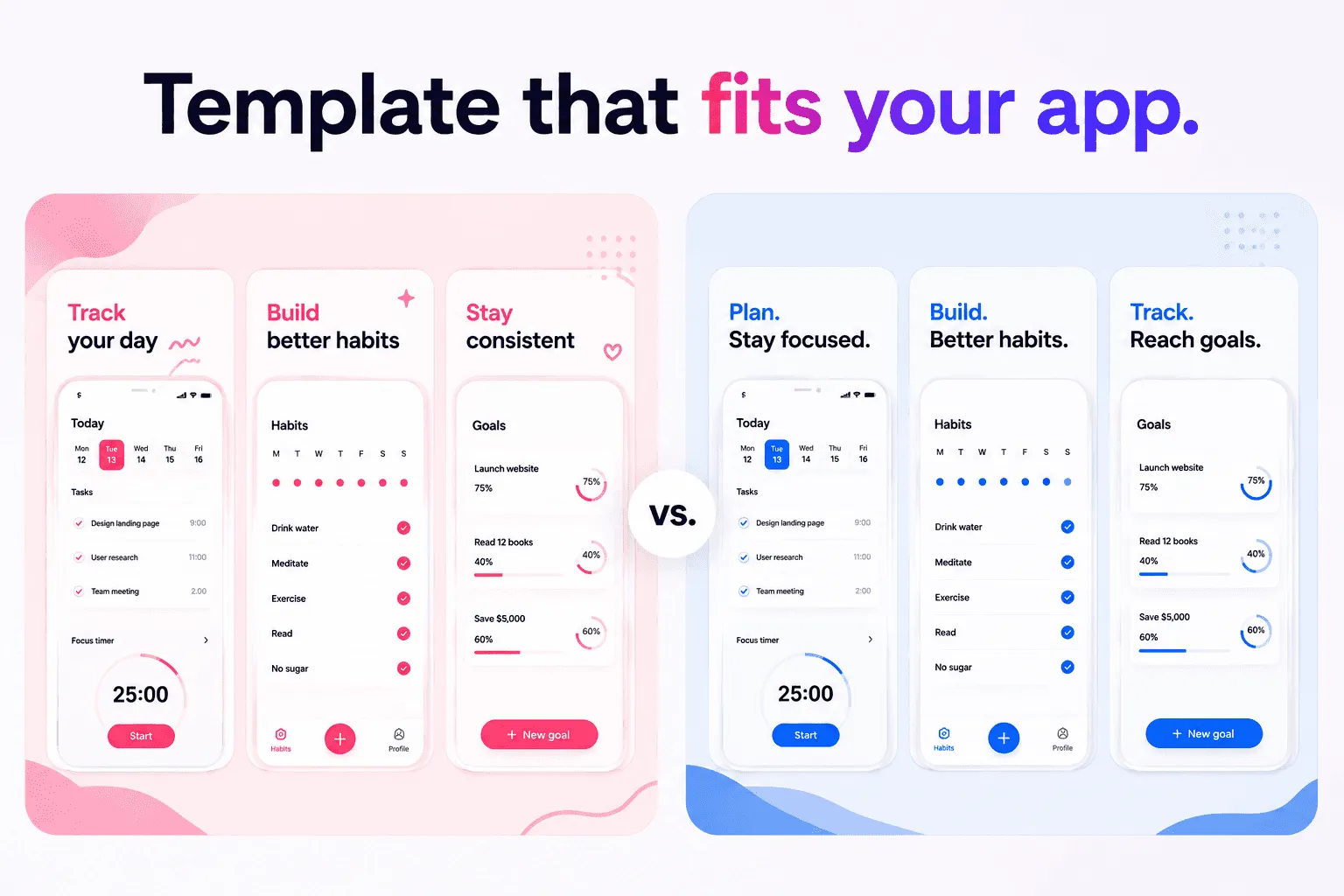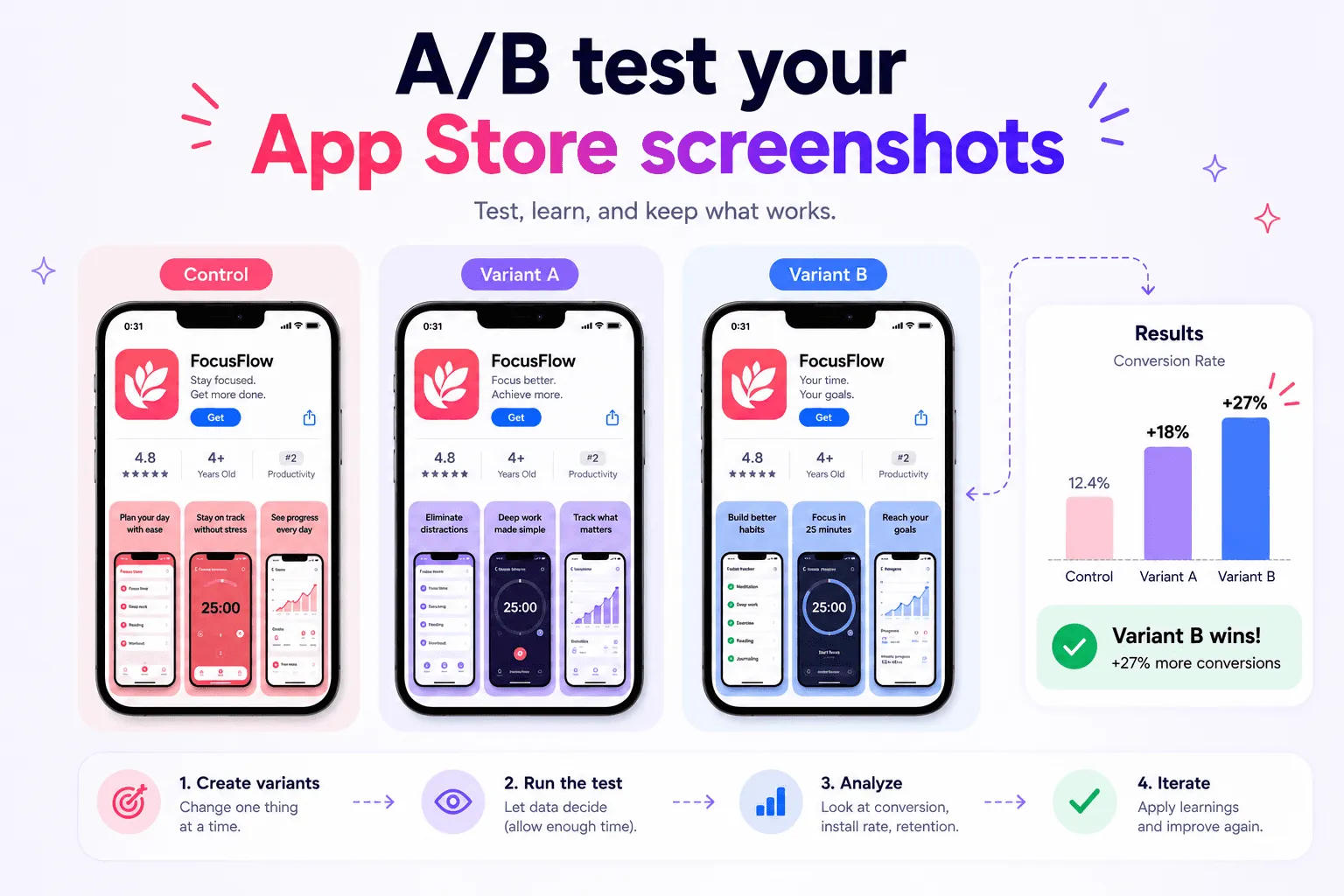

Apple currently lists 50 supported App Store languages and locale variants. Managing all of them is no longer a translation task. It becomes a release operation involving metadata, screenshots, reviews, ownership, and publishing states.
A scalable App Store Connect localization workflow needs one source of truth, clear statuses, and repeatable checks. Otherwise, a small copy change can create dozens of inconsistent product pages.
Why 50 App Store Connect localizations need a system
App Store Connect separates shared app information from platform-version information. Localizable fields can include the app name, subtitle, description, promotional text, keywords, What’s New text, URLs, screenshots, and previews, depending on the platform and field.
Apple also applies fallback behavior. When you add a language, some properties and screenshots may initially use the primary language, while descriptions and keywords don’t. If a customer’s language has no matching localization, App Store Connect selects another relevant localization or the primary language.
Fallback prevents empty pages. It doesn’t guarantee a good experience. An English screenshot beside French metadata is technically possible but often confusing.
At scale, maintain a locale matrix with:
locale and market
translator or reviewer
metadata status
screenshot status
source version
last review date
App Store Connect status
notes about claims, URLs, or compliance
This matrix is a recommended operating practice, not an Apple requirement. For the underlying setup, read the complete guide to App Store localization.
A six-step localization workflow
1. Prepare one approved source
Freeze the source metadata and screenshot copy before translation begins. Give every release a version label. Translators should know which text is current and which product features are available.
2. Localize meaning and search intent
Translate the product promise, not only the words. Review local terminology, keywords, dates, currencies, and claims. Keep every statement consistent with the app experience. The guide to choosing App Store keywords explains why English keywords shouldn’t simply be copied into other markets.
3. Review text and visuals together
A correct translation can still fail inside a screenshot. Check line breaks, text expansion, cropping, device frames, and reading order. Compare the metadata with the first screenshots so they tell the same story.
Use the App Store metadata checklist before approving each locale.
4. Publish only approved variants
Use explicit statuses such as Draft, In translation, In review, Approved, Uploaded, and Verified. Don’t upload a file because its name looks final. Confirm that the app is in an editable state and that each asset belongs to the right platform, locale, and version.
5. Verify App Store Connect
After upload, inspect every localization in context. Check missing fields, unexpected fallback content, screenshot order, URLs, and the selected language.
Apple notes that the displayed language can depend on the customer’s App Store location, device settings, available localizations, and primary language.
6. Maintain after release
Record what was published. When the app changes, identify affected locales before editing. Remove outdated feature claims and update screenshots when the interface changes. This prevents localization drift between your product page and the app.
How Shipper simplifies a 50-locale workflow
App Store Connect is the publication destination, but it doesn’t need to be your working environment for every draft and asset.
Shipper gives Apple developers a focused macOS workspace for organizing App Store metadata and screenshot assets across localizations. Instead of moving repeatedly between folders and tools, design files, spreadsheets, spends hours on translation you can just keep the product-page workflow together.
A practical Shipper workflow looks like this:
Create and approve the source screenshots and metadata.
Organize and translate metadata and visual variants by locale.
Keep screenshots and metadata perfectly aligned.
Publish your App Store screenshots and metadata to App Store Connect.
Return to the same organized project for the next release, if needed.
Shipper doesn’t choose keywords or measure ASO performance. It reduces the operational friction between finished translations and a complete App Store submission. That distinction matters when dozens of localizations must stay synchronized.
Save days of work on your screenshots by spending less than an hour per release!
For screenshot-specific checks, use the App Store screenshot guidelines.
FAQ
How many localizations does App Store Connect support?
Apple currently lists 50 supported languages and locale variants for App Store metadata. Availability and fallback behavior vary by country, region, device settings, and the localizations you provide.
Do I need unique screenshots for every localization?
Not technically. App Store Connect can reuse or fall back to screenshots from another language. However, localized screenshots usually provide a more consistent product page when they contain text or market-specific examples.
Can I edit every localized field at any time?
No. Editability depends on the field and the app’s current status. Apple says languages can be managed only while the app status is editable. Check Apple’s property reference before planning a release.
Keep every localization maintainable
Managing 50+ App Store Connect localizations becomes manageable when every locale follows the same source, status model, review process, and release record.
Treat localization as an ongoing publishing system. Keep metadata and screenshots together, verify fallback behavior, and document every release. When manual asset handling becomes the bottleneck, Shipper can provide a faster, more organized path from localized content to App Store Connect.