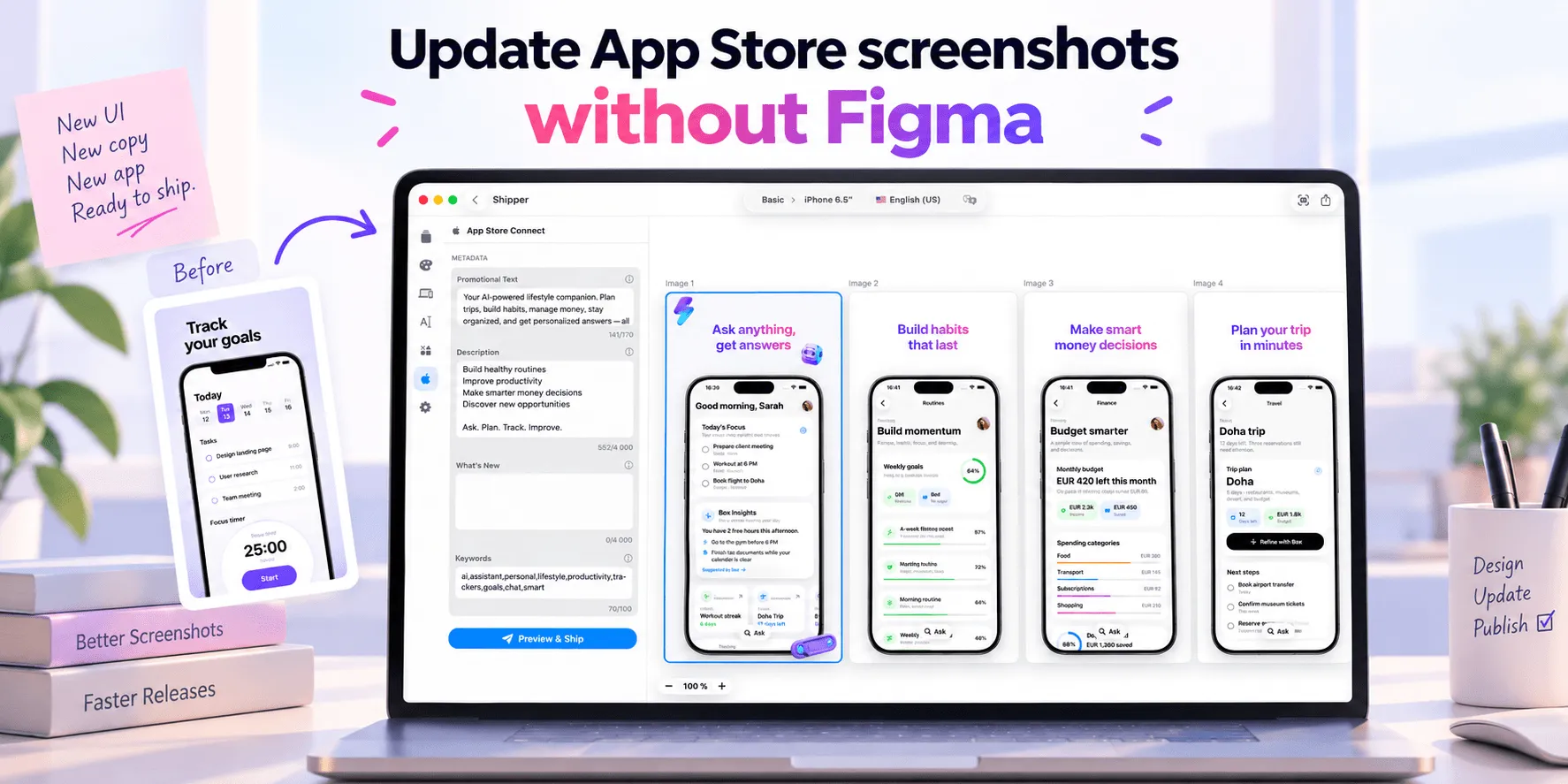
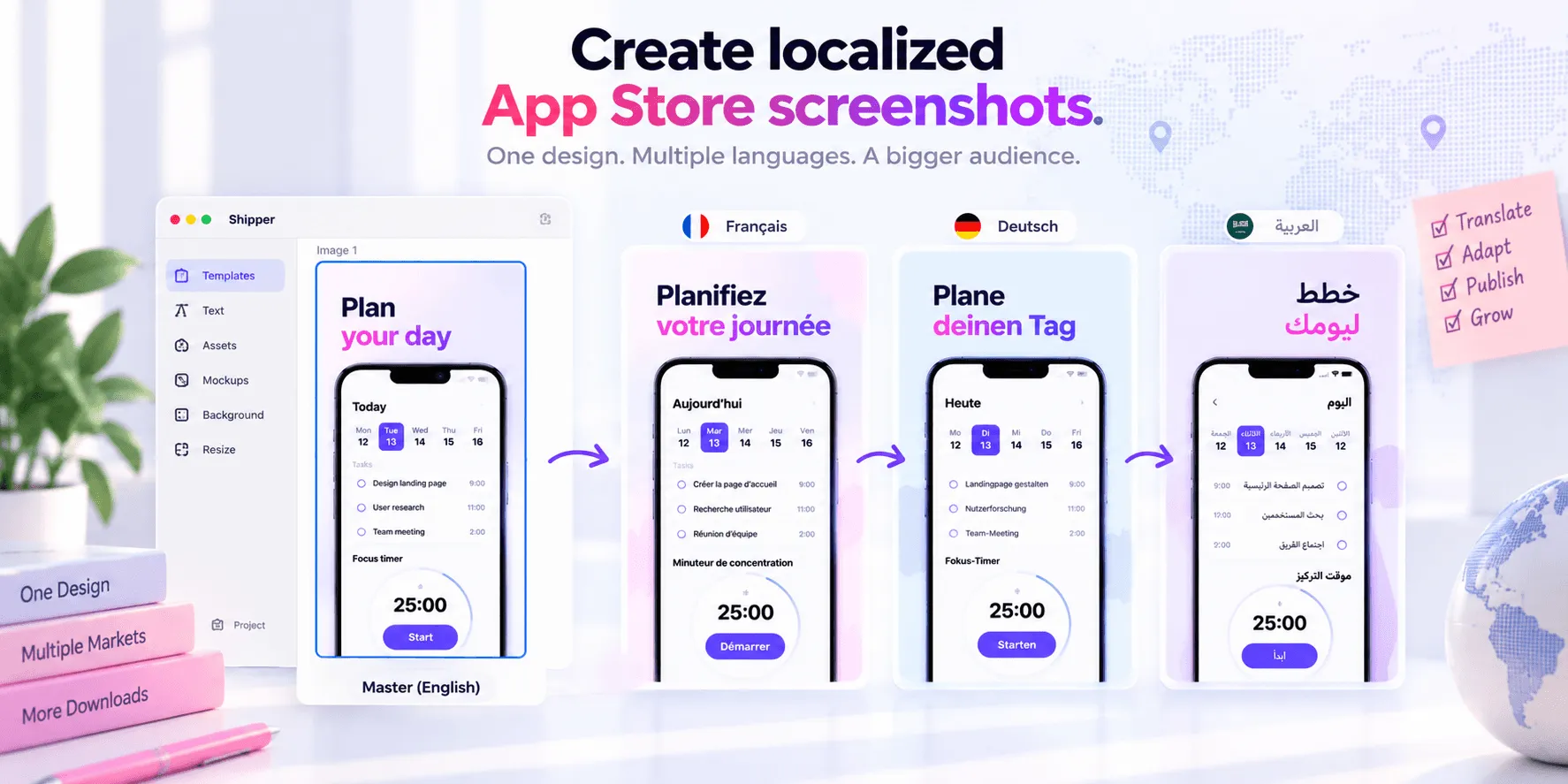
Localized App Store screenshots should share one visual system without becoming identical copies. Keep the approved structure stable, localize the content, and adjust only what each language or market requires.
Rebuilding every screenshot creates drift. Headlines move, device frames change size, spacing becomes inconsistent, and later updates must be repeated across separate files.
Start with one approved source design
Choose a source localization and finish it before creating variants. Each screenshot should have editable parts:
App UI capture
Headline and supporting copy
Background
Device frame
Icons or supporting graphics
Layout and spacing rules
Approve the order, hierarchy, type scale, brand colors, and UI crops first. This source becomes the system for every localization.
Separate stable elements from localizable ones. A background or device frame may remain shared. Headlines, interface captures, examples, claims, units, and graphics may need localization.
Reusable structure does not mean locking every element. It means starting each locale from a controlled system instead of an empty canvas.
The App Store screenshot templates guide explains how to choose a useful structure.
Research before translating
Literal translation can preserve the words while losing the message. First define the audience, problem, search context, tone, and product availability for the target market.
Create a terminology brief covering:
Product and feature names
Preferred benefit language
Words that remain unchanged
Formal or informal tone
Units, dates, currencies, and examples
Claims valid in that market
Unavailable features or services
The benefit can remain consistent while terminology and examples change. This is adaptation, not a redesign. The complete App Store localization guide covers market selection and terminology research.
Translate without breaking the layout
Text expansion is normal. A short English headline may become longer in German, French, or Spanish. Do not solve every overflow by shrinking the font until the message becomes unreadable.
Use this order:
Rewrite the translation more concisely.
Adjust the line break.
Widen or reposition the text area.
Move the UI crop or supporting elements.
Reduce font size only when readability remains strong.
For right-to-left languages, review alignment, reading order, directional icons, device placement, and the visible app interface. Mirroring every decorative element automatically can create mistakes.
Confirm that the font supports the script and that weight, punctuation, diacritics, and line height remain readable.
Keep copy and app UI aligned
A localized headline paired with an English app capture creates an incomplete experience. When the visible interface supports the message, capture the app in the intended language.
Use the same feature term in the headline, visible UI, subtitle, and description. Inconsistent wording can make a product page feel assembled from unrelated sources.
Apple's App Review Guidelines require screenshots and metadata to represent the app accurately. Localization should not introduce claims or functionality that the submitted app does not provide.
The common App Store Connect screenshot errors guide includes more checks for language and UI mismatches.
Understand Apple's fallback behavior
App Store Connect supports localized screenshots and version metadata. Apple says languages can be managed only while the app is in an editable status.
When you add a localization, screenshots and some properties initially default to the primary language. If no localization matches a user's language setting, Apple displays the next most relevant localization or the primary language.
Fallback makes the primary set important, but it does not replace reviewing priority markets. A French product page should not accidentally inherit English screenshot text when a complete French experience is expected.
Apple also requires a new version to update screenshots after an app version has been approved.
Use a repeatable workflow
A scalable process looks like this:
Approve the source sequence and design.
Create the target localization.
Translate and adapt copy using the terminology brief.
Add localized UI captures.
Review language with a qualified reviewer.
Adjust layouts only where needed.
Adapt the set to supported Apple screenshot specifications.
Preview every frame at product-page size.
Validate claims, language, cropping, and metadata.
Publish approved assets and record the changes.
Shipper brings this workflow into one macOS app. You can reuse templates, switch between localizations, translate screenshot copy and metadata, adapt designs to supported iPhone, iPad, and Mac specifications, preview results, and upload approved screenshots and metadata to App Store Connect.
Translations and adaptive layouts still require human review. A first draft cannot confirm cultural accuracy, legal claims, or perfect visual balance in every market.
For large releases, see Managing 50+ App Store Connect localizations.
Adapt one screenshot set to multiple specifications
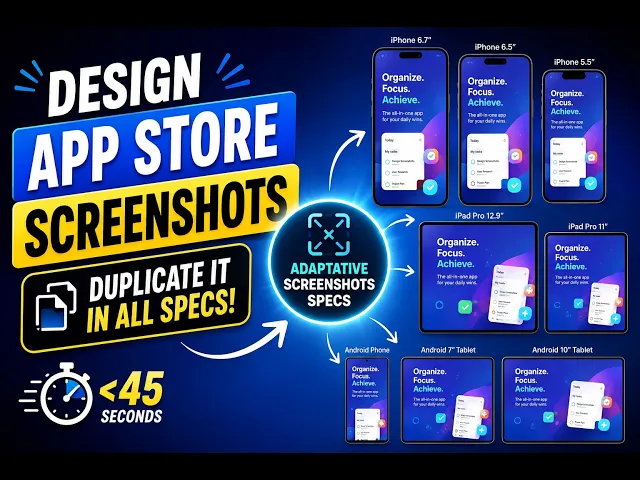
Creating a separate design for every Apple screenshot specification can quickly recreate the same maintenance problem. Shipper’s Adaptive Screenshots feature lets you use one approved source specification and duplicate the complete screenshot set to other supported specifications in one click.
Shipper preserves the design structure, hierarchy, spacing, and content while adapting the layout to the new dimensions.
The adaptative versions remain editable, so you can review device framing, line breaks, UI scale, and alignment before publishing. This turns the source design into a reusable system for both localization and specification management, without claiming that every adapted layout is ready without human review.
Localization checklist
Before publishing, confirm:
The source design is approved and reusable.
Terminology matches across copy, UI, and metadata.
Text remains readable without excessive shrinking.
Right-to-left layouts have been reviewed manually.
Every capture uses the intended language.
Claims and examples are valid for the market.
Each supported specification has been previewed.
Fallback assets are intentional.
Language and visual context have been reviewed.
Localized App Store screenshots do not need to become separate design projects. Build one strong system, adapt its content carefully, and keep human review for final decisions.
FAQ
Do App Store screenshots need to be localized?
Apple does not require a separate screenshot set for every language, but localized screenshots can make the product page clearer and more relevant for priority markets.
Can I reuse one design across all localizations?
Yes. Reuse the structure, hierarchy, and brand system, then adjust copy, UI captures, examples, spacing, and direction where each locale requires it.
What happens if I do not provide screenshots for a localization?
App Store Connect may use screenshots from the primary language or another relevant localization according to Apple's fallback behavior.
Should I make localized text smaller to fit?
Only as a last adjustment. First improve the translation, line breaks, text area, and surrounding layout while protecting readability.