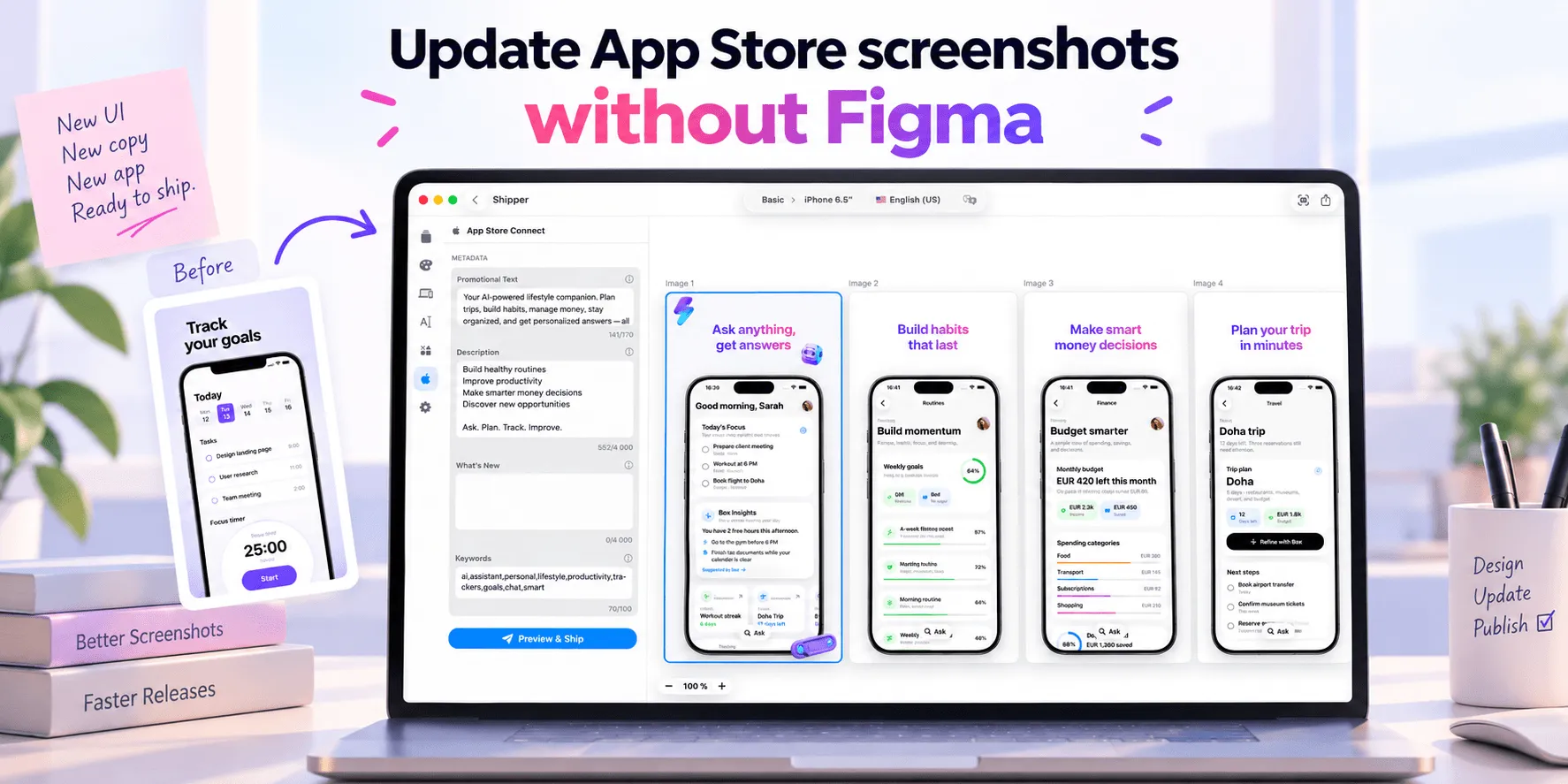
You do not need Figma to update App Store screenshots. The essential work is identifying what changed, replacing outdated UI, preserving a clear visual story, checking every localization, and preparing compliant files for App Store Connect.
Decide what actually needs to change
Start with the reason for the update. Did the interface change? Are you repositioning the app? Did users misunderstand a feature? Are you entering another market?
Audit the current set frame by frame:
Keep layouts that still communicate the right message.
Replace screens that no longer match the app.
Rewrite vague or feature-only headlines.
Move the strongest outcome earlier when it appears too late.
Remove repeated messages and unsupported claims.
This prevents a small product update from becoming an unnecessary redesign. The goal is a consistent set, not a new visual identity for every release.
For deeper planning, use the App Store screenshot design guide.
Capture current UI before editing
Use a current production or release-candidate build. Capture clean states that demonstrate the feature named in each screenshot. Avoid expired test data, personal information, debug controls, and screens users cannot reach.
Apple’s App Review Guidelines require screenshots and other metadata to represent the app’s core experience accurately. Screenshots should show the app in use, rather than relying only on title art, a login screen, or a splash screen.
Match every headline with visible evidence. “Plan your week in minutes” should appear above a real planning interface, not an unrelated settings screen. If the UI cannot support a claim, change it.
Review the current App Store screenshot guidelines before export.
Update the system instead of rebuilding it
A reusable screenshot system separates the captured UI from the surrounding design. Replace the screen first, then adjust only what the new content affects:
Headline and supporting copy
UI crop and scale
Device frame
Background and contrast
Order within the sequence
Preserve typography, spacing, colors, and hierarchy across the set. One main idea per frame is usually clearer than several competing labels.
Figma remains useful for broad design systems, advanced components, and collaborative interface design. A general image editor can handle occasional static exports. App Store Connect can replace finished files, but it is not a screenshot design environment.
A dedicated tool becomes useful when you regularly maintain several formats, sets, and localizations.
Use Shipper as the screenshot workspace
Shipper lets Apple developers capture screens from Simulator or import existing images, then create designs from templates or from scratch. You can reuse layouts, replace UI, update copy, preview the set, and export PNG files without returning to a general-purpose design file.
Its adaptive screenshot workflow can turn an approved composition into drafts for supported iPhone, iPad, and Mac specifications. Review every result because different proportions may change cropping, line breaks, or visual balance.
Shipper can also organize localized screenshot copy and App Store metadata, then upload approved assets to App Store Connect.
Review every localization in context
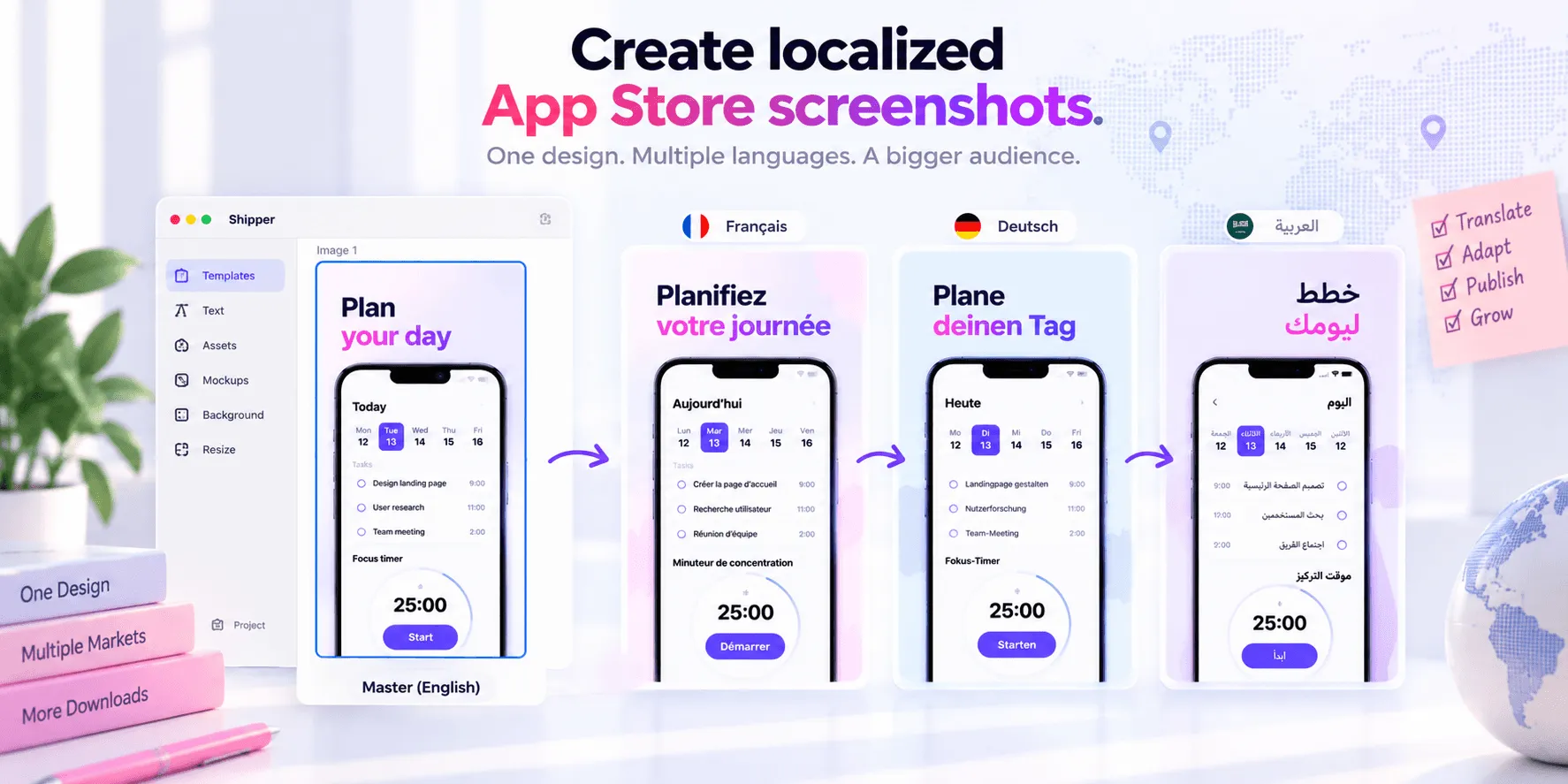
Do not translate the English headline and assume the design is finished. Check each locale for terminology, tone, text expansion, line breaks, and the language visible inside the app.
A French localization should not contain Spanish screenshot copy. The headline and interface should also use consistent terms for the same feature.
Apple allows localized screenshots. When a localization is added, screenshots may initially default to the primary language. If no matching localization is available, App Store fallback behavior may display another relevant language. Inspect each locale instead of relying on defaults.
The App Store localization guide covers the wider workflow.
Preview, validate, and publish
Review the complete sequence at a realistic product-page size. Check whether the first frames explain the app quickly and whether every later frame adds useful information.
Before uploading, confirm:
The UI matches the submitted version.
Copy remains readable at thumbnail size.
Claims and social proof are accurate.
No real personal information appears.
Files match Apple’s current specifications.
Every localization contains the intended language.
Screenshots and metadata describe the same product.
Apple currently allows one to ten screenshots in JPEG, JPG, or PNG format. You can upload screenshots while the app version is in an editable status such as Prepare for Submission, Rejected, or Metadata Rejected.
For an app version Apple has approved, you must create a new version to update its screenshots. Screenshot images are separate from the binary, but they remain reviewed product-page metadata. Replacing a file does not silently change an approved live version.
Use the App Store metadata checklist before submitting.
Updating App Store screenshots without Figma is mainly a workflow decision. Keep the UI current, reuse a stable design system, review every locale, and publish only assets that match the app.
FAQ
Can I change App Store screenshots without uploading a new app version?
For an approved app version, Apple requires you to create a new version before updating its screenshots. Screenshots are separate assets, but they remain part of the reviewed product page.
Do I need Figma to create App Store screenshots?
No. You can use a dedicated screenshot tool, another image editor, or upload finished files directly to App Store Connect. The best option depends on the design control, localization, and format management you need.
How many App Store screenshots can I upload?
Apple currently allows a minimum of one and a maximum of ten screenshots. Accepted formats include JPEG, JPG, and PNG.
Should every localization have different screenshots?
Not necessarily. You can reuse the same visual structure, but each important localization should be checked for language, terminology, text length, visible UI, and market relevance.